Visual guide to Yapily Hosted Pages UI screens for payment and data flows. See institution picker, consent, confirmation, and payment status screens shown to end users.
Hosted Pages is available as a Beta version.
Please contact your Customer Success Manager if you would like to access it.
After bank selection, cVRP payers are shown a limits confirmation screen displaying the mandate parameters they are agreeing to, followed by a “How it works” disclosure overlay before they are redirected to their bank.Presented limitsThe consent screen displays the parameters the payer is agreeing to: per payment limit, periodic limit, and expiry date (or “Ongoing” for open-ended mandates). These must be proportionate to your actual billing pattern and use case - setting limits significantly above what you’ll collect is a Damaging Practice under cVRP scheme rules. A good rule of thumb is 20–25% above your highest expected charge.How it worksThis overlay covers the mandatory pre-mandate disclosure obligations (cancellation rights, how payments are initiated, and dispute options).
The on-screen “How it works” display is not a durable medium. You must still send the payer a post-setup confirmation (email, SMS, or stored in-app message) containing the key mandate parameters.
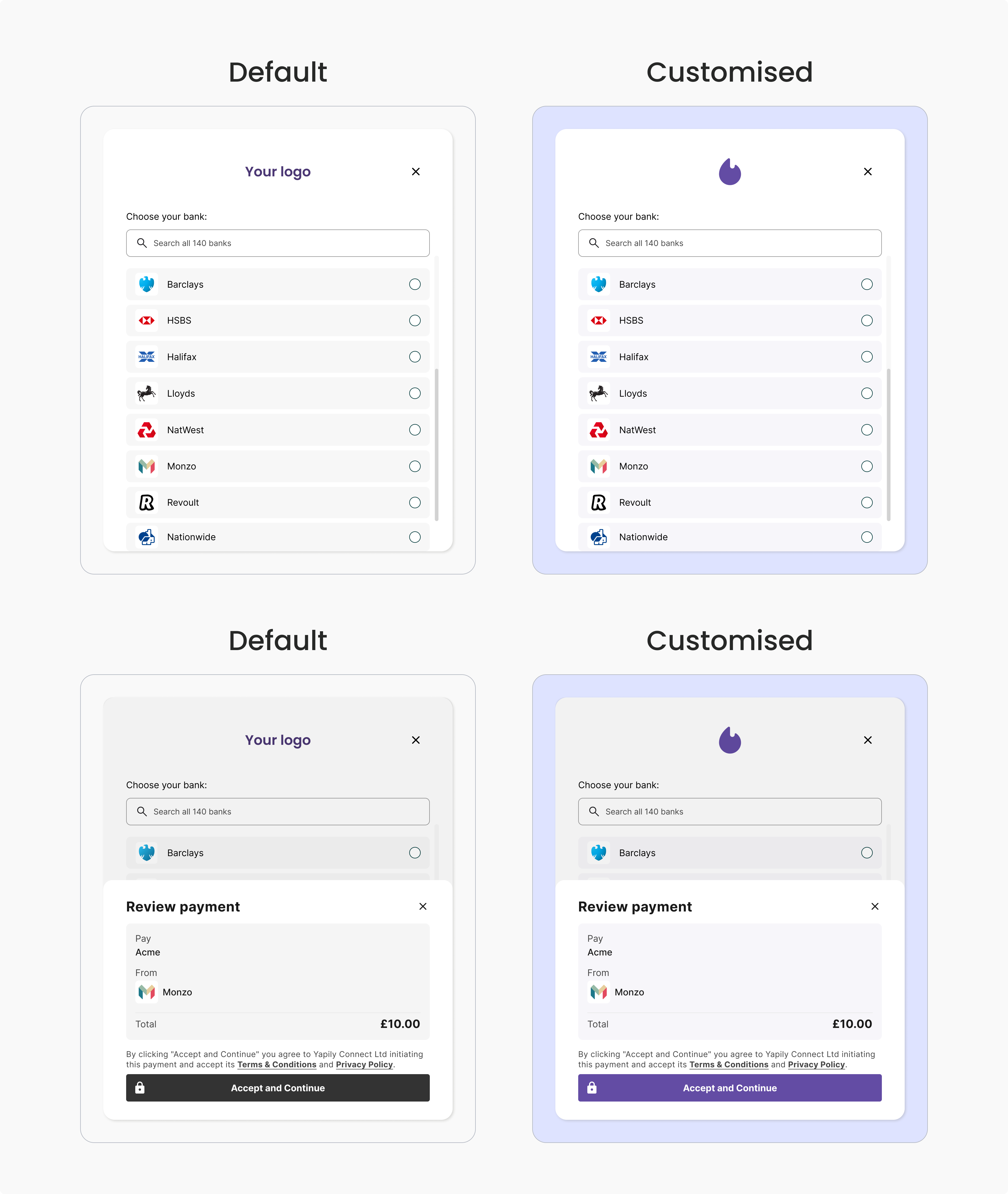
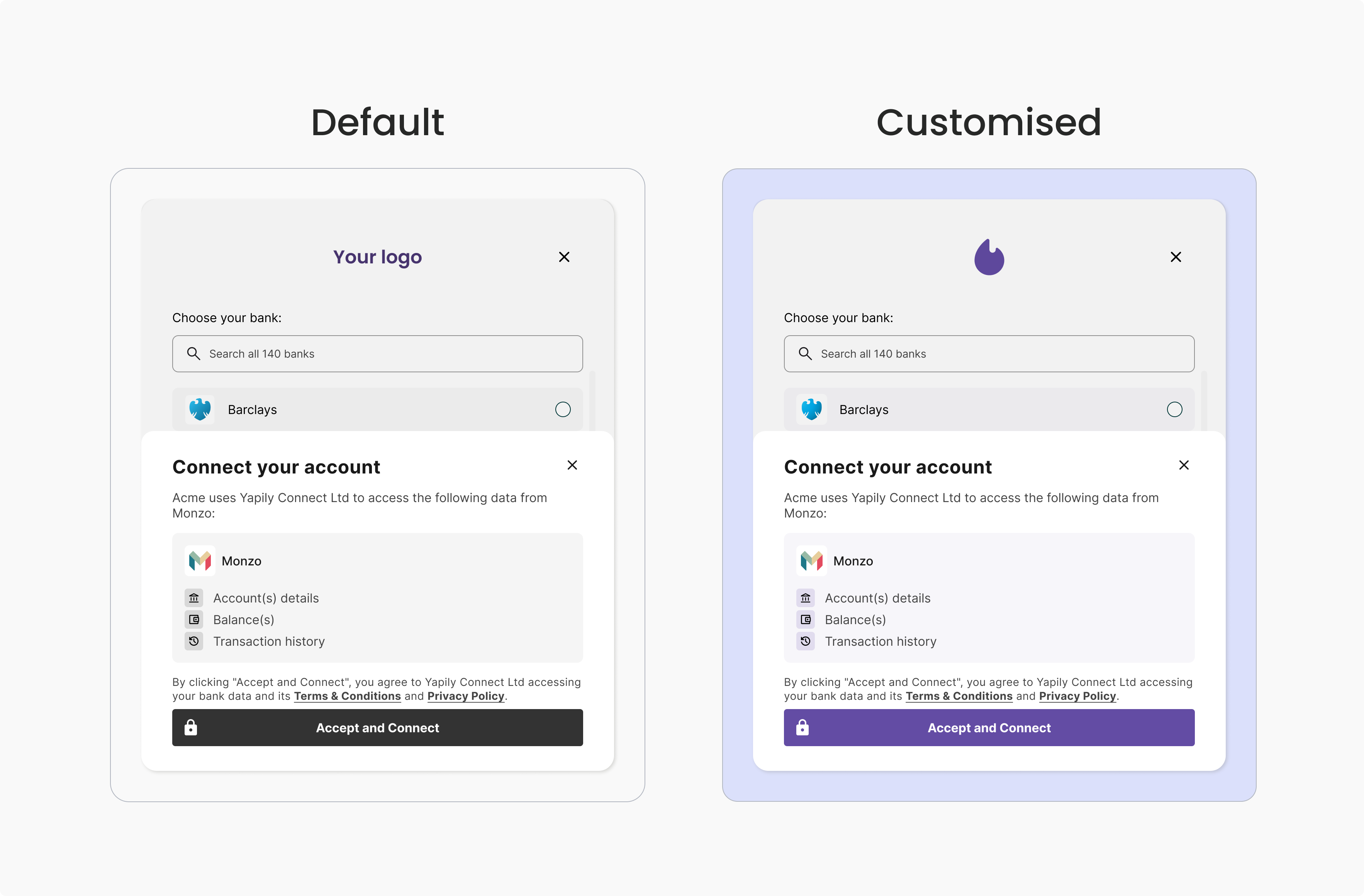
If you are a Yapily Connect customer, your users will be shown a consent screen before being redirected to their bank.This screen states that you are partnering with Yapily Connect as a TPP and includes Yapily Connect’s Terms and Conditions and Privacy Notice. By selecting “continue” the end user is consenting to Yapily Connect initiating a payment from their account and the associated terms.Note: If you use your own licences the consent page will not be displayed. You should ensure to meet any necessary consent requirements before directing your users to the Hosted Pages flow.
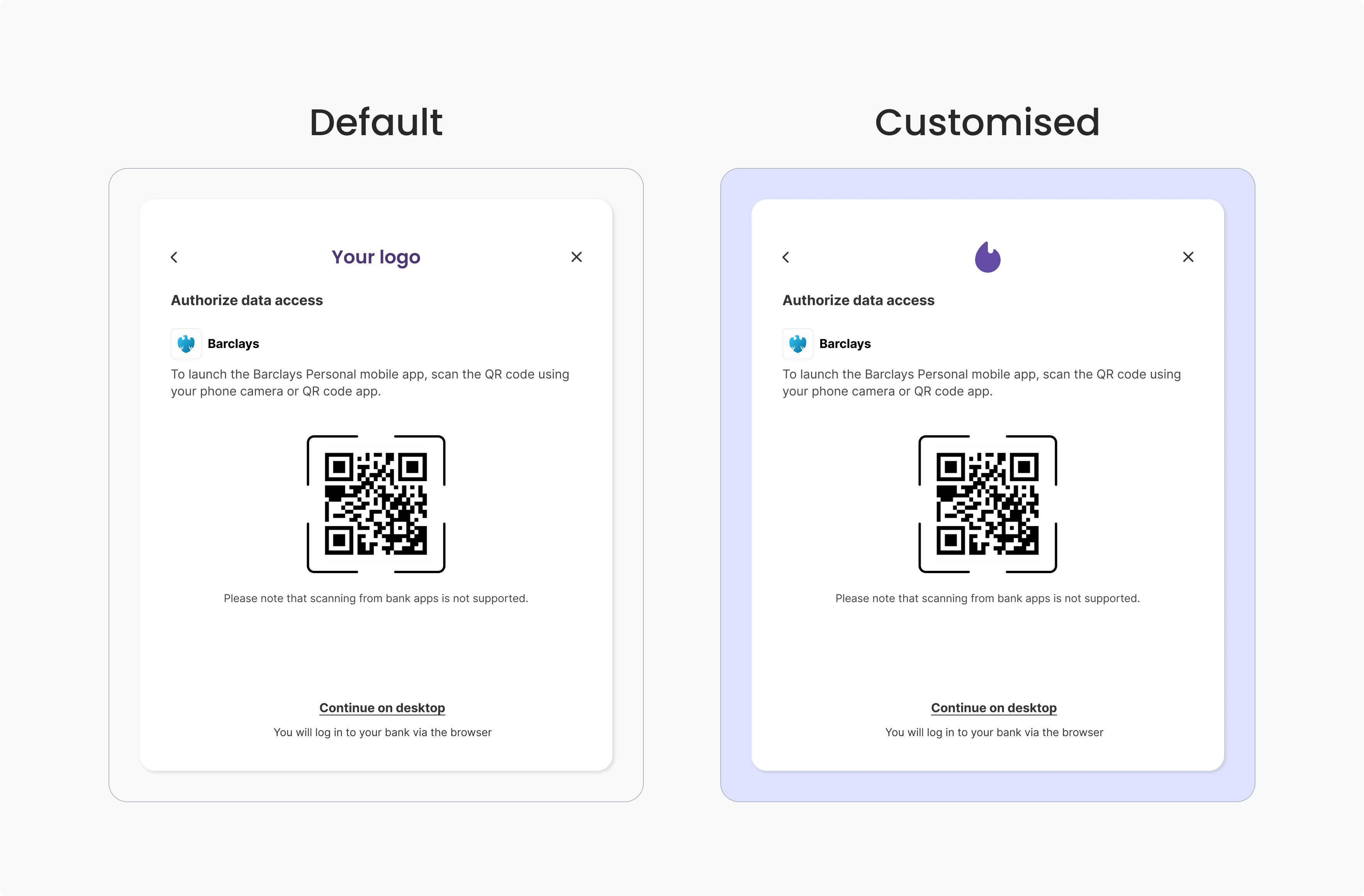
Redirects the user to their selected bank to authenticate and authorise the payment request.The QR code allows desktop users to continue the payment on their mobile bank app.Mobile bank apps usually offer a more streamlined user experience, enhancing security and reducing the number of steps needed to provide a consent.
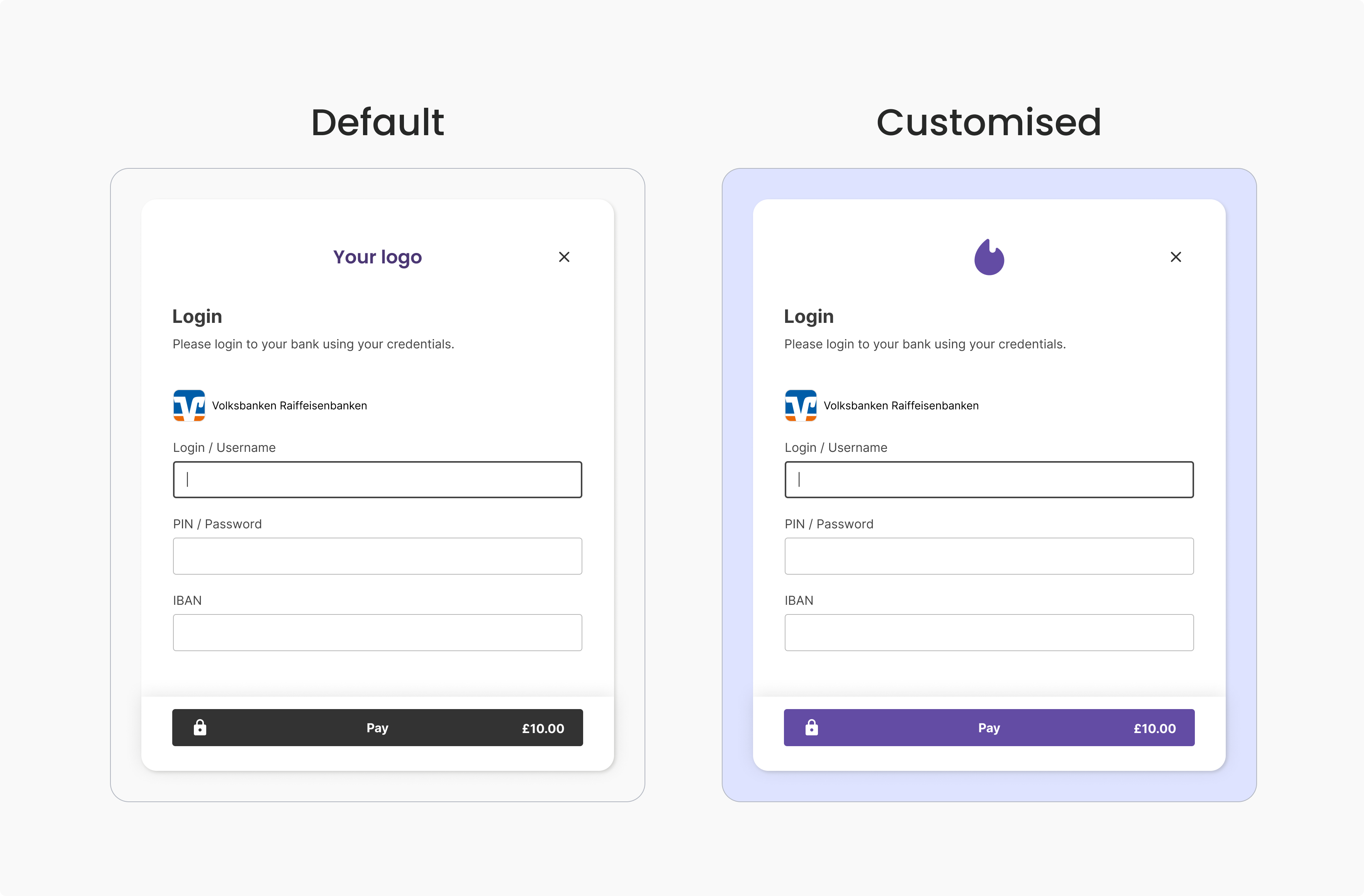
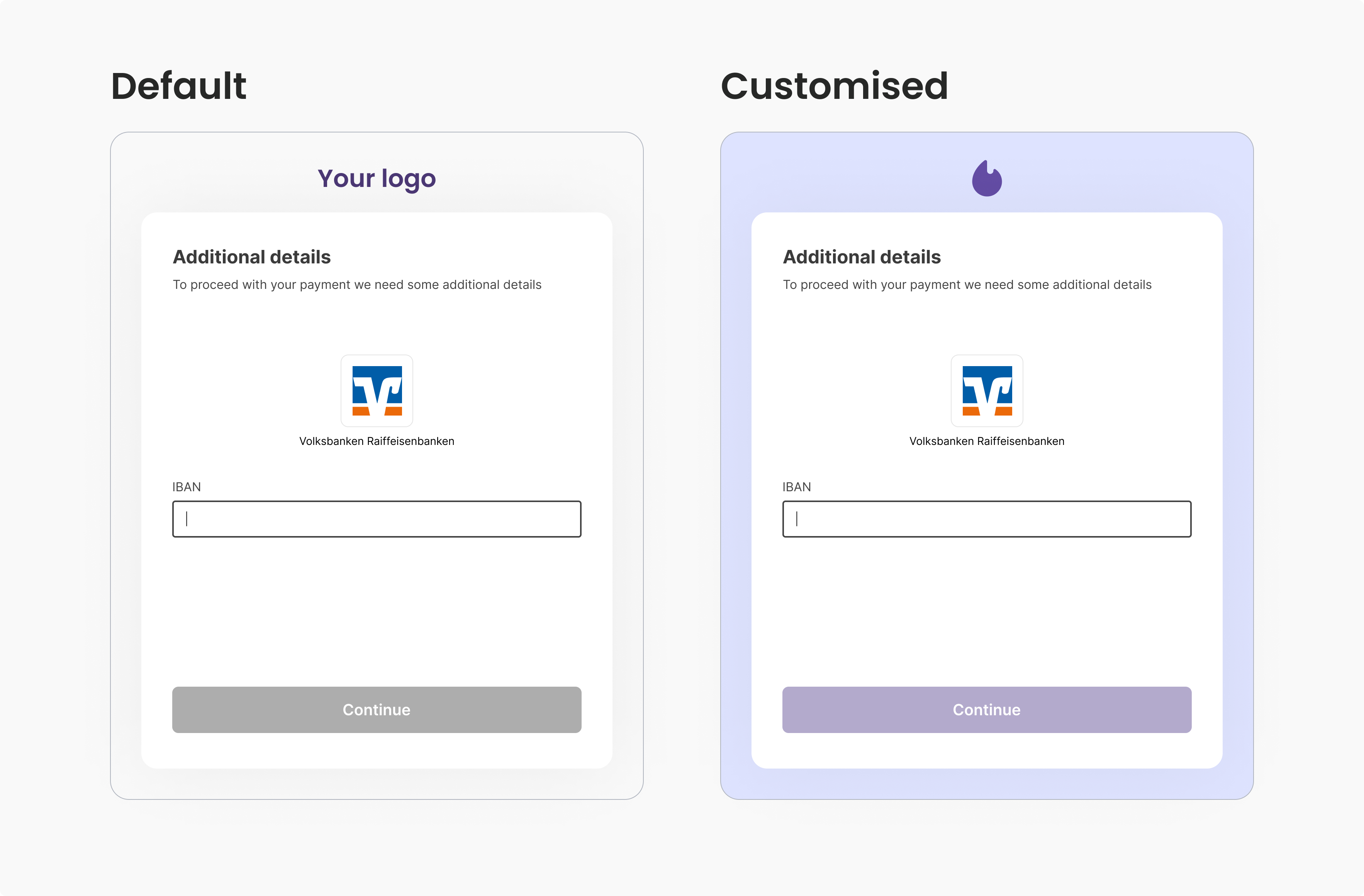
Provides input fields for the user to provide additional information to complete the payment. For example, IBAN number.Note: This screen is only displayed if the details are required by the bank when confirming user consent for the payment.
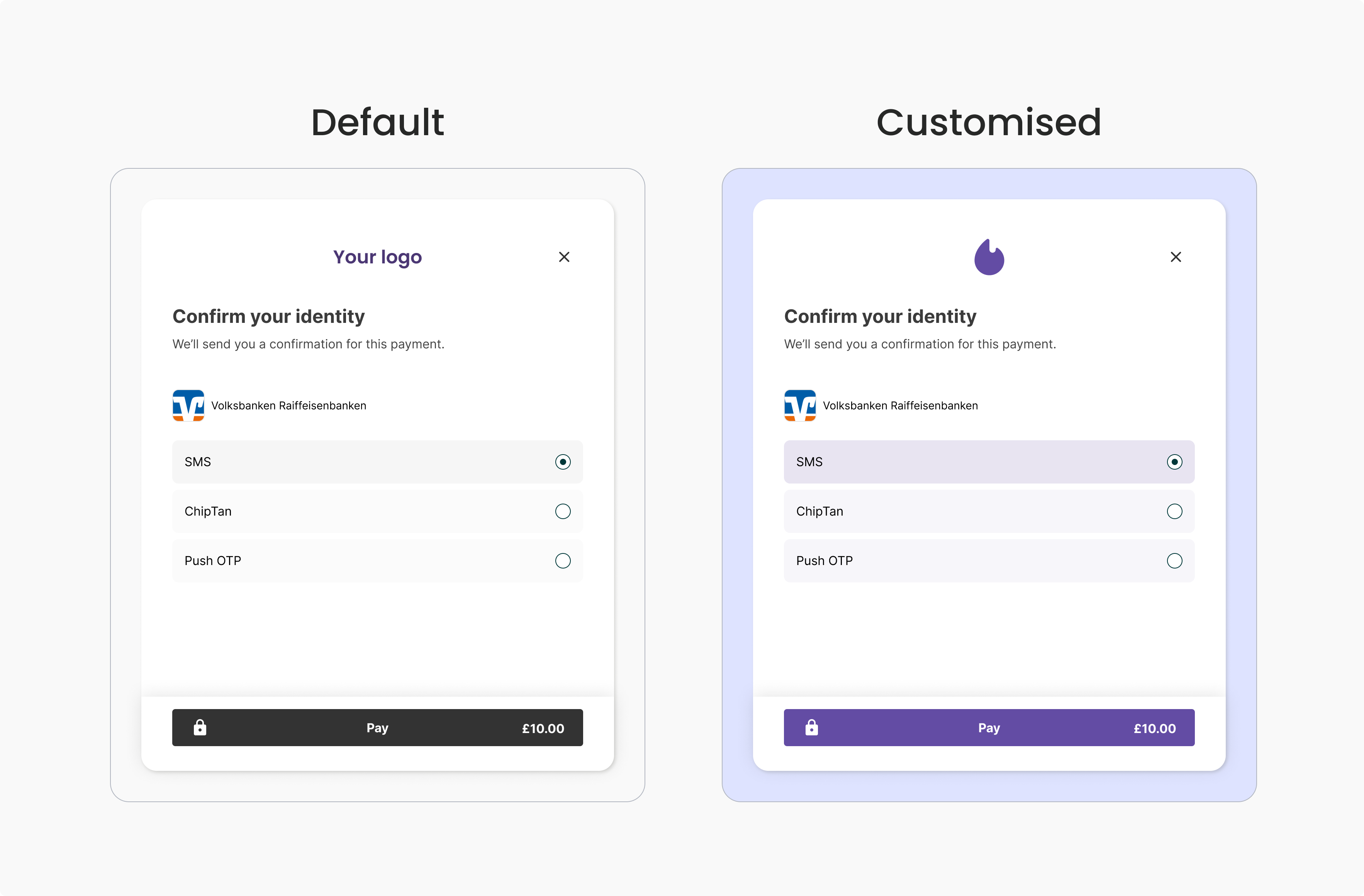
Allows the user to select their preferred strong customer authentication (SCA) method. The available methods depend on what the user has configured with their bank.Note: This screen is only displayed if the details are required by the bank when confirming user consent for the payment.
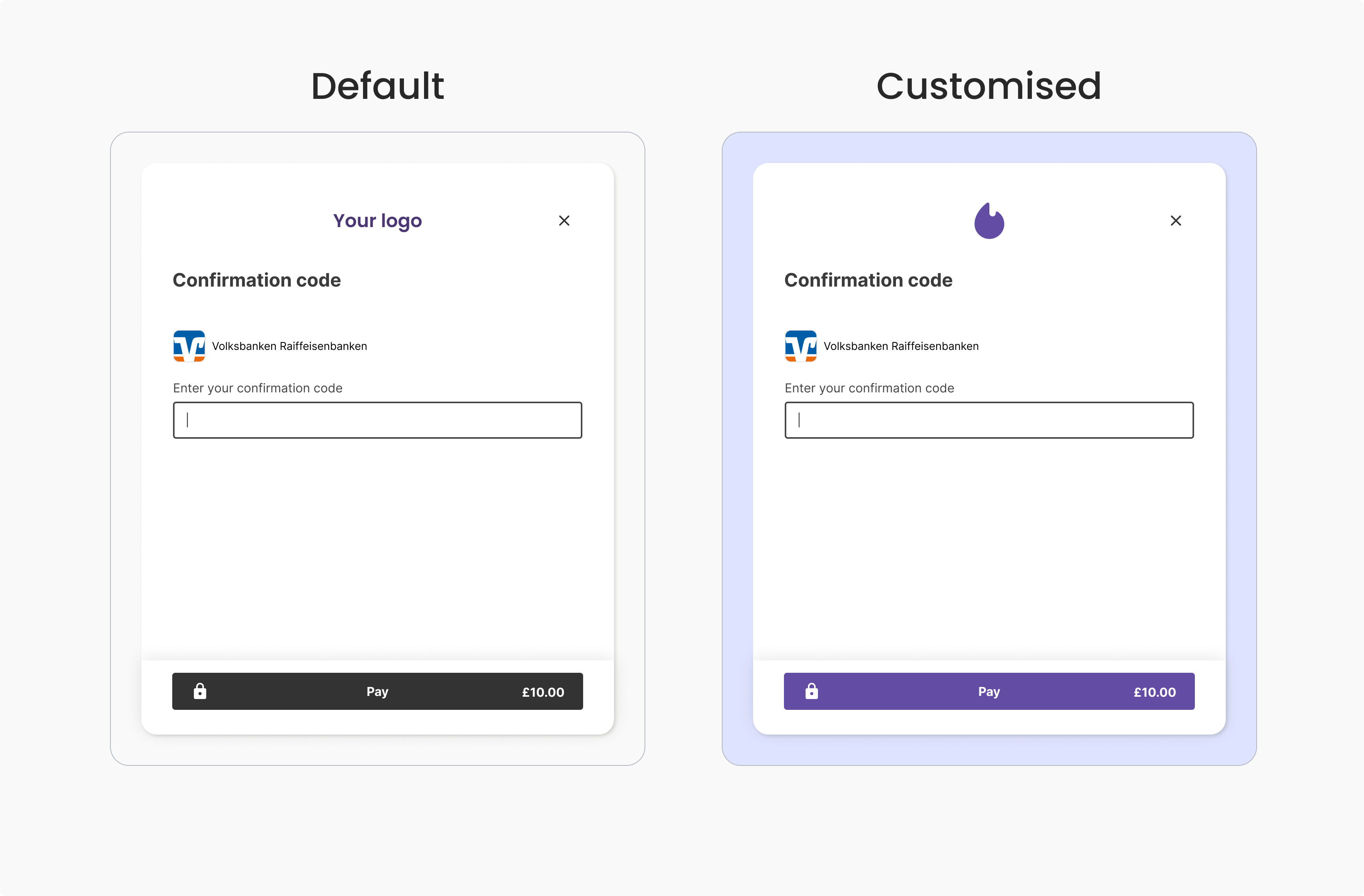
Provides an input field for the user to submit the SCA code sent directly to them by the bank.Note: This screen is only displayed if the details are required by the bank when confirming user consent for the payment.
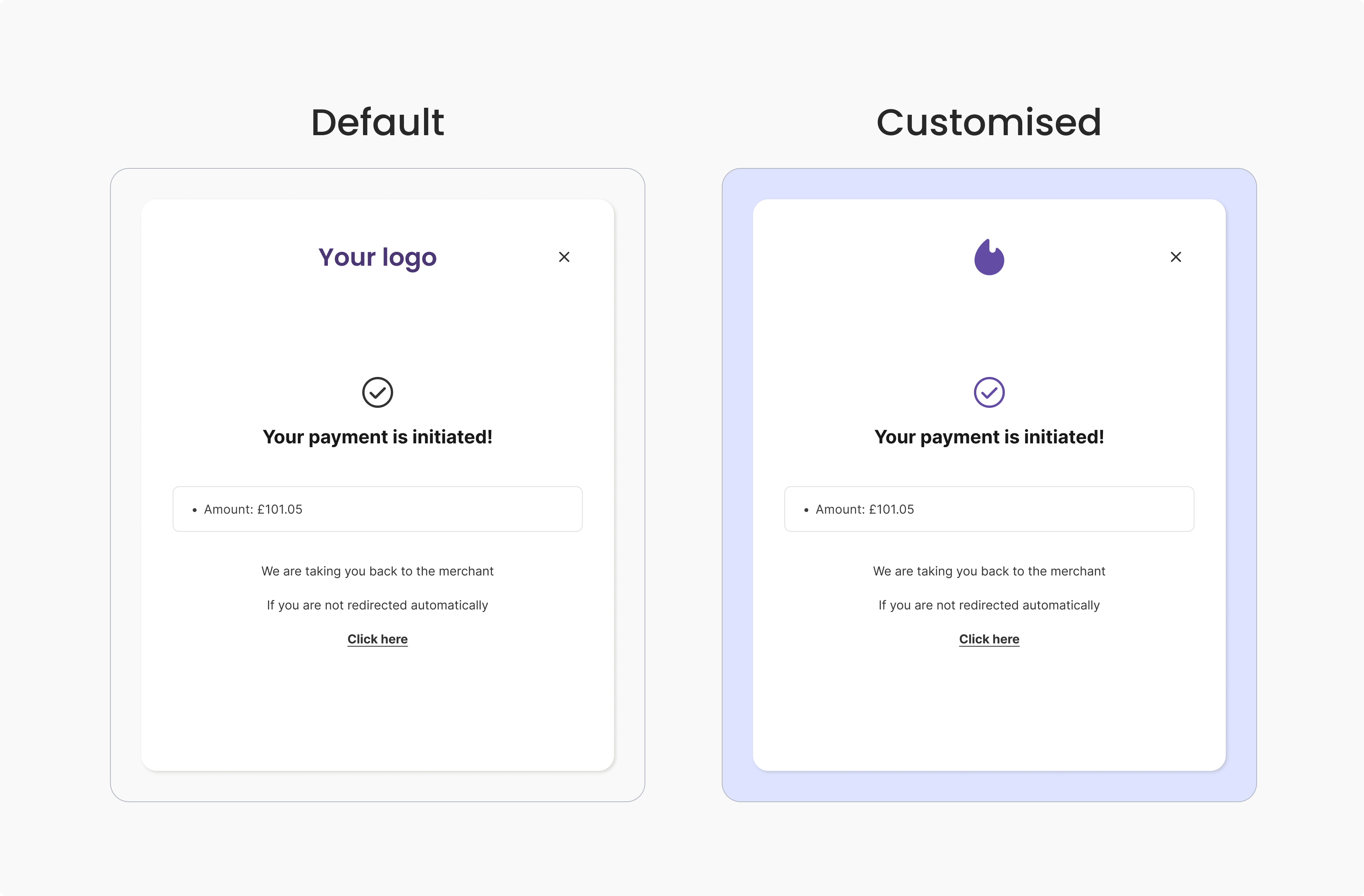
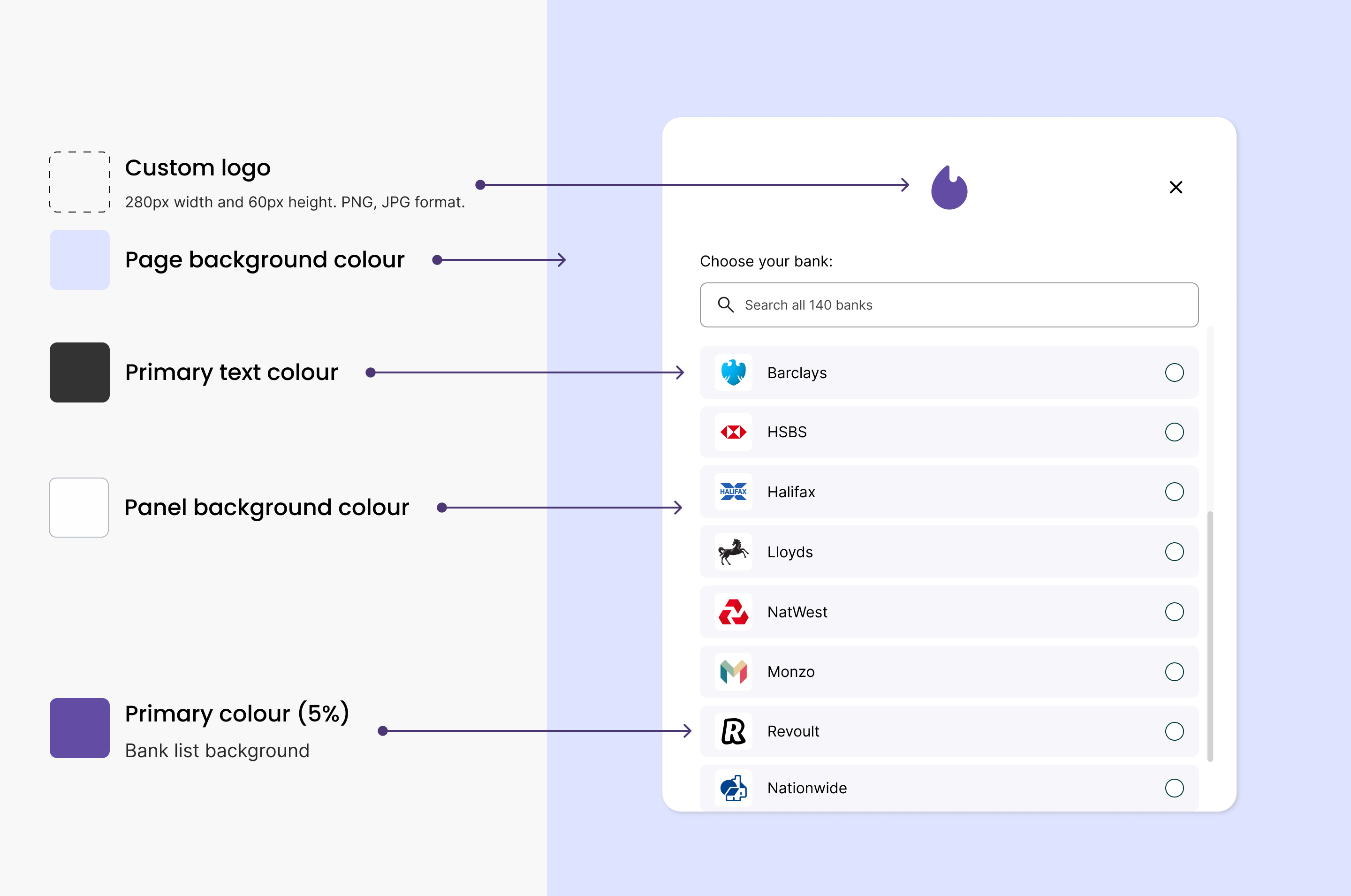
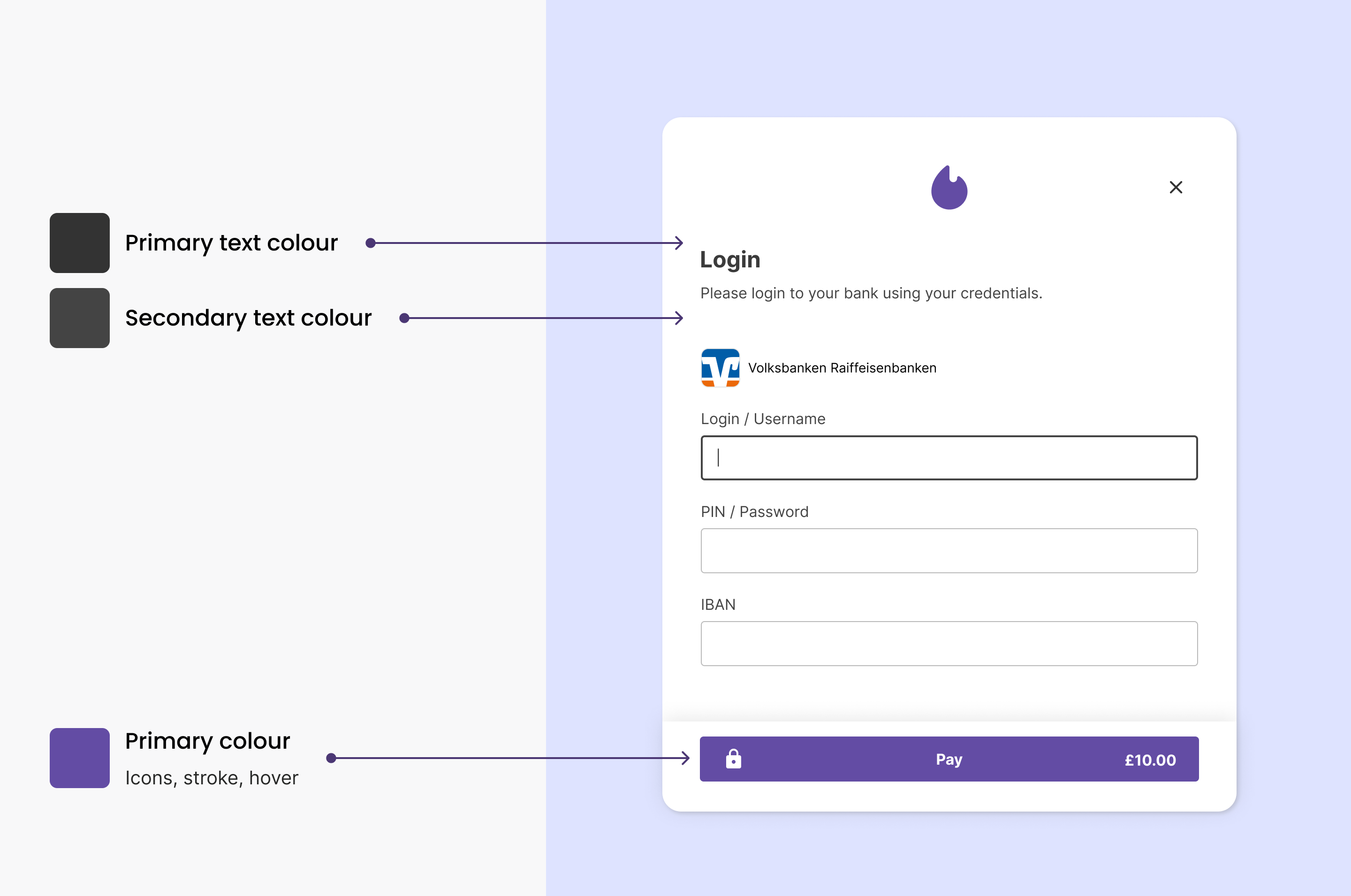
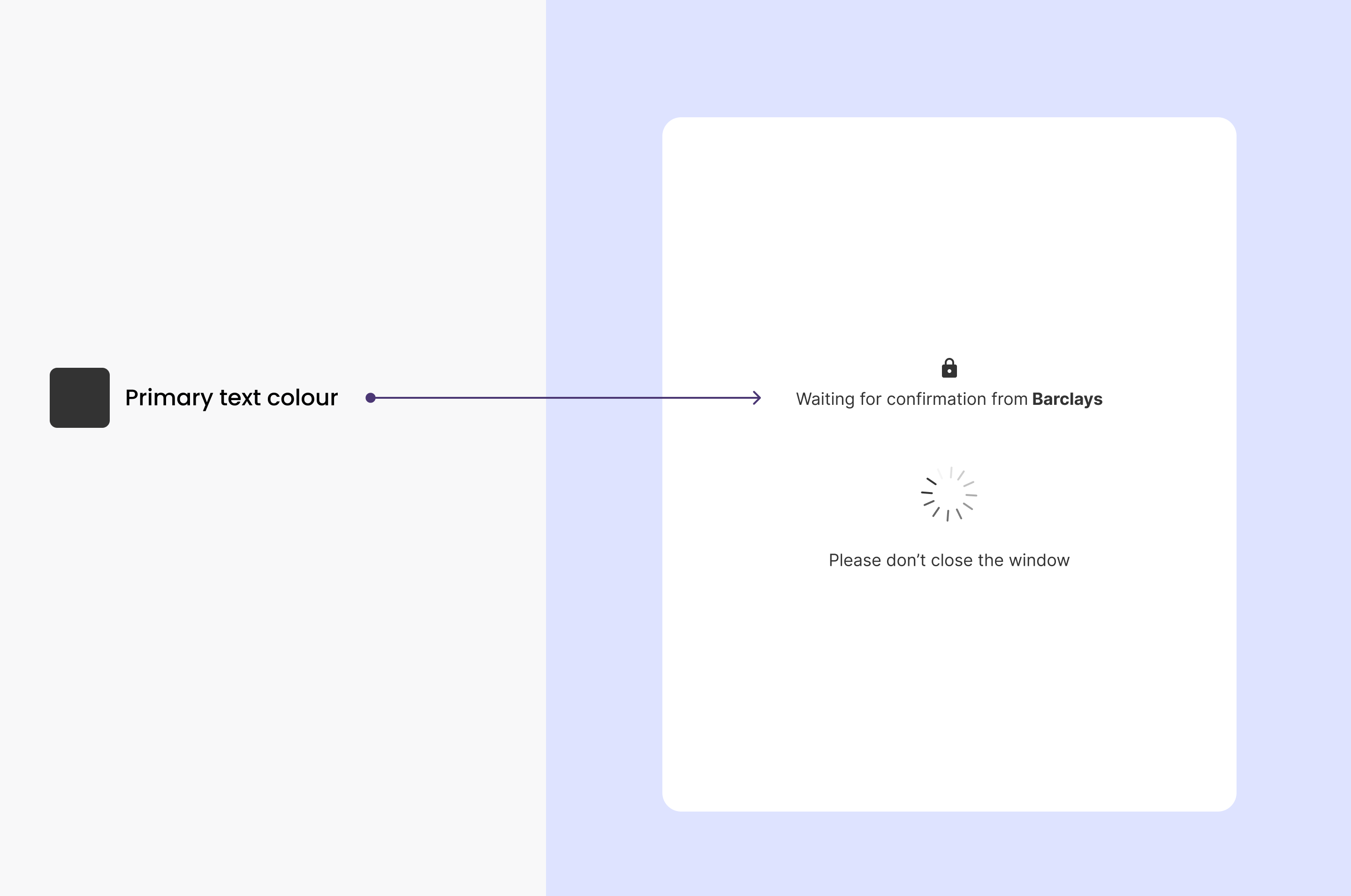
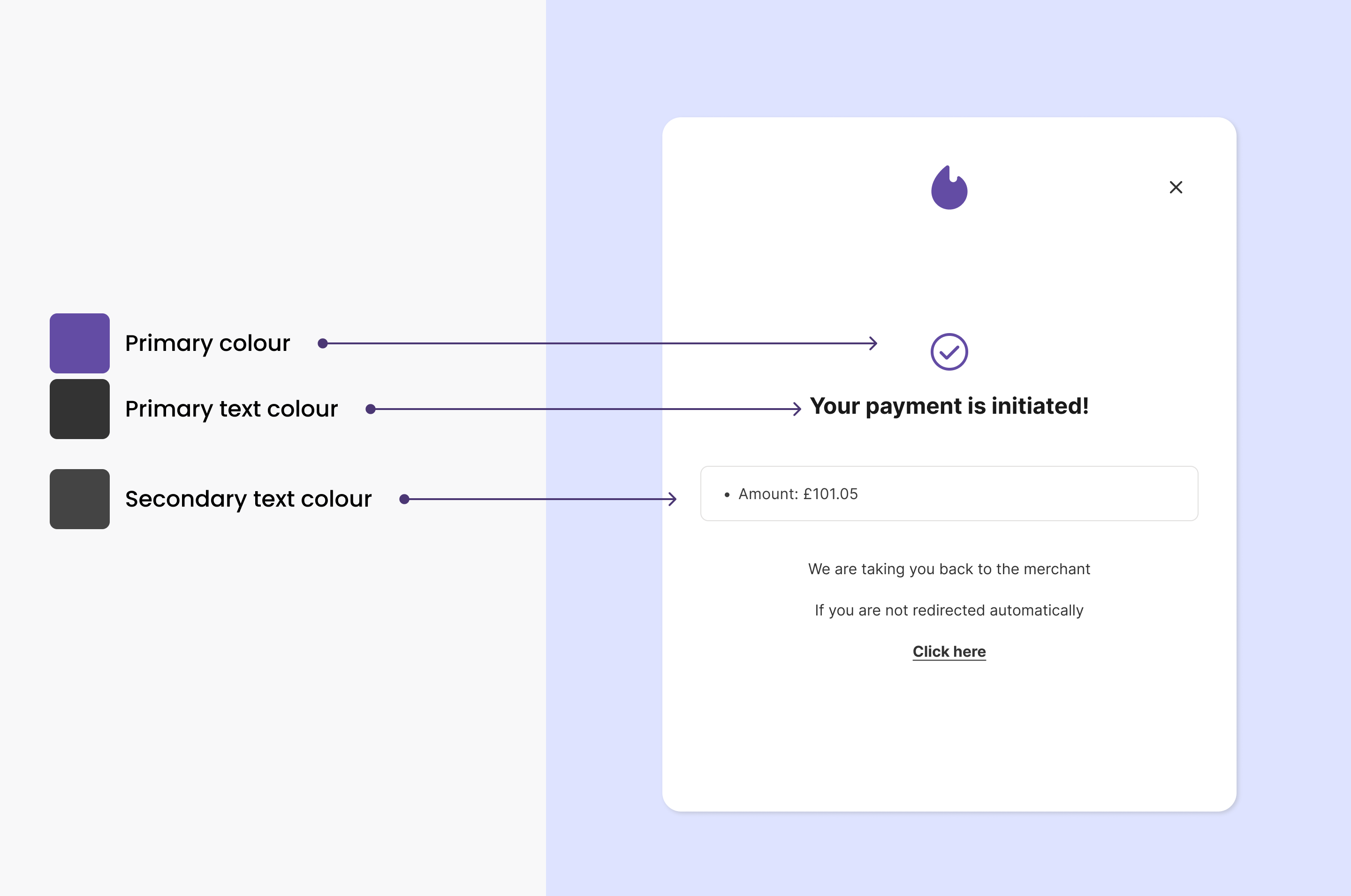
Customisation is available on all screens to create a more consistent experience for your end users as they transition between your application and Yapily Hosted Pages.The following customisation options are available:
Custom logo
Primary colour
Background colour
Page background colour
Primary text colour
Secondary text colour
Currently, the implementation of customisation requests is managed by Yapily. Please let us know what customisation you would like.Customisation can be applied at both the application and sub-application level, allowing you to tailor the user experience for individual merchants or use cases.