> ## Documentation Index
> Fetch the complete documentation index at: https://docs.yapily.com/llms.txt
> Use this file to discover all available pages before exploring further.
# Tutorial: Make a single payment
> Step-by-step tutorial for completing a domestic UK single payment with Yapily's Open Banking API. Covers institution selection, user consent, and payment execution.
## Introduction
This tutorial explains how to create a UK domestic single payment with the Modelo Sandbox.
**Note:** All requests made to the Yapily API require [basic authentication](/getting-started/integration-setup/api-authentication).
***
## Overview of steps
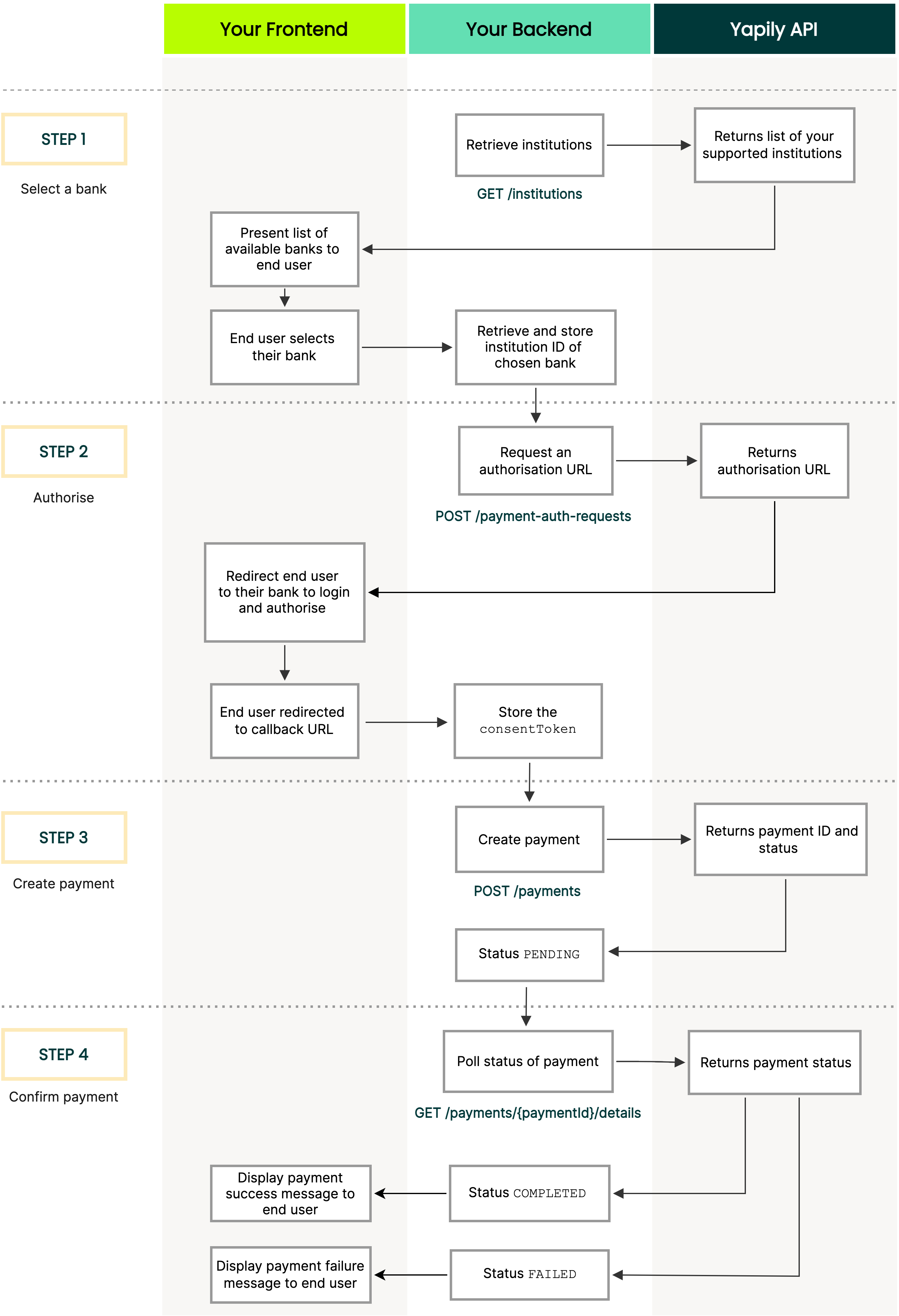
The following diagram illustrates how to create a UK domestic single payment:
 ***
To find which banks support single domestic payments use [GET institutions](/api-reference/institutions/get-institutions) to retrieve the list of your supported institutions.
```bash Request theme={null}
curl -L -X GET 'https://api.yapily.com/institutions' \
-u 'APPLICATION_KEY:APPLICATION_SECRET'
```
```json Response theme={null}
{
"meta": {
"tracingId": "acbb76db4ab8f4ac7f039d000456c13f",
"count": 1
},
"data": [
{
"id": "modelo-sandbox",
"name": "Modelo Sandbox",
"fullName": "Modelo Sandbox",
"countries": [
{
"displayName": "United Kingdom",
"countryCode2": "GB"
}
],
"environmentType": "SANDBOX",
"credentialsType": "OPEN_BANKING_UK_AUTO",
"media": [
{
"source": "https://images.yapily.com/image/ce2bfdbf-1ae2-4919-ab7b-e8b3d5e93b36?size=0",
"type": "icon"
},
{
"source": "https://images.yapily.com/image/ca502f24-d6df-4785-b4b8-1034b100af77?size=0",
"type": "logo"
}
],
"features": [
"INITIATE_ACCOUNT_REQUEST",
"ACCOUNT_REQUEST_DETAILS",
"EXISTING_PAYMENTS_DETAILS",
"ACCOUNT_BALANCES",
"CREATE_BULK_PAYMENT",
"ACCOUNT_PERIODIC_PAYMENTS",
"ACCOUNT_STATEMENTS",
"INITIATE_BULK_PAYMENT",
"ACCOUNT_STATEMENT",
"ACCOUNT",
"INITIATE_DOMESTIC_PERIODIC_PAYMENT",
"INITIATE_SINGLE_PAYMENT_SORTCODE",
"ACCOUNT_DIRECT_DEBITS",
"ACCOUNTS",
"ACCOUNT_TRANSACTIONS",
"EXISTING_PAYMENT_INITIATION_DETAILS",
"CREATE_DOMESTIC_SINGLE_PAYMENT",
"INITIATE_DOMESTIC_SINGLE_PAYMENT",
"ACCOUNT_STATEMENT_FILE",
"CREATE_INTERNATIONAL_SINGLE_PAYMENT",
"IDENTITY",
"CREATE_DOMESTIC_SCHEDULED_PAYMENT",
"INITIATE_DOMESTIC_SCHEDULED_PAYMENT",
"CREATE_SINGLE_PAYMENT_SORTCODE",
"ACCOUNT_TRANSACTIONS_WITH_MERCHANT",
"INITIATE_INTERNATIONAL_SINGLE_PAYMENT",
"PERIODIC_PAYMENT_FREQUENCY_EXTENDED",
"ACCOUNT_SCHEDULED_PAYMENTS",
"CREATE_DOMESTIC_PERIODIC_PAYMENT"
]
}
]
}
```
Filter the list for all institutions that support the feature `CREATE_DOMESTIC_SINGLE_PAYMENT`. Then display these institutions in your application so the user can select which bank to make the payment from.
Once the user selects a bank, store the `id` of the institution to use in step 2.
This example uses a single redirect flow using a [callback URL](/open-banking-flow/handling-redirects/callback-url).
Execute [create payment authorisation](/api-reference/authorisations/create-payment-authorisation) including the institution ID, your callback URL and the `paymentRequest` object.
For a detailed explanation of every field in the payment request, see [Building a Payment Request](/concepts/payment-request-anatomy).
```bash Request theme={null}
curl -L -X POST 'https://api.yapily.com/payment-auth-requests' \
-H 'Content-Type: application/json' \
-u 'APPLICATION_KEY:APPLICATION_SECRET' \
-d '{
"applicationUserId": "single-payment-tutorial",
"institutionId": "modelo-sandbox",
"callback": "https://display-parameters.com/",
"paymentRequest": {
"type": "DOMESTIC_PAYMENT",
"reference": "Bills Coffee Shop",
"paymentIdempotencyId": "{uniqueValue}",
"amount": {
"amount": 8.70,
"currency": "GBP"
},
"payee": {
"name": "BILLS COFFEE LTD",
"accountIdentifications": [
{
"type": "ACCOUNT_NUMBER",
"identification": "{accountNumber}"
},
{
"type": "SORT_CODE",
"identification": "{sortCode}"
}
]
}
}
}'
```
```json Response theme={null}
{
"meta": {
"tracingId": "611f74cb4f3205d983ebb2fca59d0847"
},
"data": {
"id": "af563bac-e50a-42bd-91bc-581813e13733",
"userUuid": "f3be3c23-bd0e-475e-b389-62dd1f5aa6c1",
"applicationUserId": "single-payment-tutorial",
"institutionId": "modelo-sandbox",
"status": "AWAITING_AUTHORIZATION",
"createdAt": "2021-03-03T09:23:45.841Z",
"featureScope": [
"EXISTING_PAYMENTS_DETAILS",
"CREATE_DOMESTIC_SINGLE_PAYMENT",
"EXISTING_PAYMENT_INITIATION_DETAILS"
],
"state": "6b07bddf9e7746ae8ecb7cbecc00f19a",
"institutionConsentId": "sdp-1-469c63ef-e6b6-4dd2-88b7-3aea0bff4136",
"authorisationUrl": "{authorisationUrl}",
"qrCodeUrl": "https://images.yapily.com/image/55b6b6bc-daa8-490c-89e1-243156868e00/1614763426?size=0"
}
}
```
Redirect the user to the `authorisationUrl` returned in the response.
The user is then asked to login and authorise the payment with their bank. The [Modelo sandbox credentials](/resources/sandbox/sandbox-credentials) are: `mits` / `mits`.
Upon completion, the user is redirected back to the callback URL supplied in the request. In this example, the callback is `https://display-parameters.com/` which displays the parameters returned with the redirect.
Store the `consentToken` to use when creating the payment in step 3.
[Create the payment](/api-reference/payments/create-payment) specifying the `consentToken` in the header and the contents of the `paymentRequest` object in step 2 as the body.
```bash Request theme={null}
curl -L -X POST 'https://api.yapily.com/payments' \
-H 'Content-Type: application/json' \
-H 'Consent: {consentToken}' \
-u 'APPLICATION_KEY:APPLICATION_SECRET' \
-d '{
"type": "DOMESTIC_PAYMENT",
"reference": "Bills Coffee Shop",
"paymentIdempotencyId": "{uniqueValue}",
"amount": {
"amount": 8.70,
"currency": "GBP"
},
"payee": {
"name": "BILLS COFFEE LTD",
"accountIdentifications": [
{
"type": "ACCOUNT_NUMBER",
"identification": "{accountNumber}"
},
{
"type": "SORT_CODE",
"identification": "{sortCode}"
}
]
}
}'
```
```json Response theme={null}
{
"meta": {
"tracingId": "0f07ebe9be5fbec0dd660c4e091bd181"
},
"data": {
"id": "pv3-6c0f031d-6786-4845-9799-bdd2e89ba362",
"institutionConsentId": "sdp-1-469c63ef-e6b6-4dd2-88b7-3aea0bff4136",
"paymentIdempotencyId": "{uniqueValue}",
"paymentLifecycleId": "69d55454ea74546e8b1b44efb17fc45",
"status": "PENDING",
"statusDetails": {
"status": "PENDING",
"isoStatus": {
"code": "PDNG",
"name": "Pending"
}
"statusUpdateDate": "2021-03-03T09:41:48.253Z"
},
"payeeDetails": {
"name": "BILLS COFFEE LTD",
"accountIdentifications": [
{
"type": "ACCOUNT_NUMBER",
"identification": "{accountNumber}"
},
{
"type": "SORT_CODE",
"identification": "{sortCode}"
}
]
},
"reference": "Bills Coffee Shop",
"amount": 8.70,
"currency": "GBP",
"amountDetails": {
"amount": 8.70,
"currency": "GBP"
},
"createdAt": "2021-03-03T09:41:48.253Z"
}
}
```
The payment `status`, which describes the state of the payment, is returned in the response.
If the status is `PENDING`, you can use the payment `id` to poll the payment status until it transitions to `COMPLETED` or `FAILED` as in step 4.
For more information see [payment status](/payments/payment-resources/payment-status).
This is an optional step, however we recommend monitoring the status of the payment when its `PENDING` to confirm if the institution accepts the payment initiation request.
Our recommended implementation in order to receive the latest payment status is to subscribe for single payment [Webhooks Events](/tools-and-services/webhooks/introduction) and process the events as they arrive in your system, please follow the guides bellow:
* [Webhook Requirements](/tools-and-services/webhooks/introduction)
* [Webhook API Guide](/tools-and-services/webhooks/get-started)
we do **not** recommend polling [get payment details](/api-reference/payments/get-payment-details) as it is protected by the rate limit and might affect your integration at scale.
***
Looking for our quickest integration option? Learn how to make a single payment with [Yapily Hosted Pages](/tools-and-services/hosted-pages/overview) which provides a pre-built and hosted UI to quickly and easily facilitate single payments.
***
To find which banks support single domestic payments use [GET institutions](/api-reference/institutions/get-institutions) to retrieve the list of your supported institutions.
```bash Request theme={null}
curl -L -X GET 'https://api.yapily.com/institutions' \
-u 'APPLICATION_KEY:APPLICATION_SECRET'
```
```json Response theme={null}
{
"meta": {
"tracingId": "acbb76db4ab8f4ac7f039d000456c13f",
"count": 1
},
"data": [
{
"id": "modelo-sandbox",
"name": "Modelo Sandbox",
"fullName": "Modelo Sandbox",
"countries": [
{
"displayName": "United Kingdom",
"countryCode2": "GB"
}
],
"environmentType": "SANDBOX",
"credentialsType": "OPEN_BANKING_UK_AUTO",
"media": [
{
"source": "https://images.yapily.com/image/ce2bfdbf-1ae2-4919-ab7b-e8b3d5e93b36?size=0",
"type": "icon"
},
{
"source": "https://images.yapily.com/image/ca502f24-d6df-4785-b4b8-1034b100af77?size=0",
"type": "logo"
}
],
"features": [
"INITIATE_ACCOUNT_REQUEST",
"ACCOUNT_REQUEST_DETAILS",
"EXISTING_PAYMENTS_DETAILS",
"ACCOUNT_BALANCES",
"CREATE_BULK_PAYMENT",
"ACCOUNT_PERIODIC_PAYMENTS",
"ACCOUNT_STATEMENTS",
"INITIATE_BULK_PAYMENT",
"ACCOUNT_STATEMENT",
"ACCOUNT",
"INITIATE_DOMESTIC_PERIODIC_PAYMENT",
"INITIATE_SINGLE_PAYMENT_SORTCODE",
"ACCOUNT_DIRECT_DEBITS",
"ACCOUNTS",
"ACCOUNT_TRANSACTIONS",
"EXISTING_PAYMENT_INITIATION_DETAILS",
"CREATE_DOMESTIC_SINGLE_PAYMENT",
"INITIATE_DOMESTIC_SINGLE_PAYMENT",
"ACCOUNT_STATEMENT_FILE",
"CREATE_INTERNATIONAL_SINGLE_PAYMENT",
"IDENTITY",
"CREATE_DOMESTIC_SCHEDULED_PAYMENT",
"INITIATE_DOMESTIC_SCHEDULED_PAYMENT",
"CREATE_SINGLE_PAYMENT_SORTCODE",
"ACCOUNT_TRANSACTIONS_WITH_MERCHANT",
"INITIATE_INTERNATIONAL_SINGLE_PAYMENT",
"PERIODIC_PAYMENT_FREQUENCY_EXTENDED",
"ACCOUNT_SCHEDULED_PAYMENTS",
"CREATE_DOMESTIC_PERIODIC_PAYMENT"
]
}
]
}
```
Filter the list for all institutions that support the feature `CREATE_DOMESTIC_SINGLE_PAYMENT`. Then display these institutions in your application so the user can select which bank to make the payment from.
Once the user selects a bank, store the `id` of the institution to use in step 2.
This example uses a single redirect flow using a [callback URL](/open-banking-flow/handling-redirects/callback-url).
Execute [create payment authorisation](/api-reference/authorisations/create-payment-authorisation) including the institution ID, your callback URL and the `paymentRequest` object.
For a detailed explanation of every field in the payment request, see [Building a Payment Request](/concepts/payment-request-anatomy).
```bash Request theme={null}
curl -L -X POST 'https://api.yapily.com/payment-auth-requests' \
-H 'Content-Type: application/json' \
-u 'APPLICATION_KEY:APPLICATION_SECRET' \
-d '{
"applicationUserId": "single-payment-tutorial",
"institutionId": "modelo-sandbox",
"callback": "https://display-parameters.com/",
"paymentRequest": {
"type": "DOMESTIC_PAYMENT",
"reference": "Bills Coffee Shop",
"paymentIdempotencyId": "{uniqueValue}",
"amount": {
"amount": 8.70,
"currency": "GBP"
},
"payee": {
"name": "BILLS COFFEE LTD",
"accountIdentifications": [
{
"type": "ACCOUNT_NUMBER",
"identification": "{accountNumber}"
},
{
"type": "SORT_CODE",
"identification": "{sortCode}"
}
]
}
}
}'
```
```json Response theme={null}
{
"meta": {
"tracingId": "611f74cb4f3205d983ebb2fca59d0847"
},
"data": {
"id": "af563bac-e50a-42bd-91bc-581813e13733",
"userUuid": "f3be3c23-bd0e-475e-b389-62dd1f5aa6c1",
"applicationUserId": "single-payment-tutorial",
"institutionId": "modelo-sandbox",
"status": "AWAITING_AUTHORIZATION",
"createdAt": "2021-03-03T09:23:45.841Z",
"featureScope": [
"EXISTING_PAYMENTS_DETAILS",
"CREATE_DOMESTIC_SINGLE_PAYMENT",
"EXISTING_PAYMENT_INITIATION_DETAILS"
],
"state": "6b07bddf9e7746ae8ecb7cbecc00f19a",
"institutionConsentId": "sdp-1-469c63ef-e6b6-4dd2-88b7-3aea0bff4136",
"authorisationUrl": "{authorisationUrl}",
"qrCodeUrl": "https://images.yapily.com/image/55b6b6bc-daa8-490c-89e1-243156868e00/1614763426?size=0"
}
}
```
Redirect the user to the `authorisationUrl` returned in the response.
The user is then asked to login and authorise the payment with their bank. The [Modelo sandbox credentials](/resources/sandbox/sandbox-credentials) are: `mits` / `mits`.
Upon completion, the user is redirected back to the callback URL supplied in the request. In this example, the callback is `https://display-parameters.com/` which displays the parameters returned with the redirect.
Store the `consentToken` to use when creating the payment in step 3.
[Create the payment](/api-reference/payments/create-payment) specifying the `consentToken` in the header and the contents of the `paymentRequest` object in step 2 as the body.
```bash Request theme={null}
curl -L -X POST 'https://api.yapily.com/payments' \
-H 'Content-Type: application/json' \
-H 'Consent: {consentToken}' \
-u 'APPLICATION_KEY:APPLICATION_SECRET' \
-d '{
"type": "DOMESTIC_PAYMENT",
"reference": "Bills Coffee Shop",
"paymentIdempotencyId": "{uniqueValue}",
"amount": {
"amount": 8.70,
"currency": "GBP"
},
"payee": {
"name": "BILLS COFFEE LTD",
"accountIdentifications": [
{
"type": "ACCOUNT_NUMBER",
"identification": "{accountNumber}"
},
{
"type": "SORT_CODE",
"identification": "{sortCode}"
}
]
}
}'
```
```json Response theme={null}
{
"meta": {
"tracingId": "0f07ebe9be5fbec0dd660c4e091bd181"
},
"data": {
"id": "pv3-6c0f031d-6786-4845-9799-bdd2e89ba362",
"institutionConsentId": "sdp-1-469c63ef-e6b6-4dd2-88b7-3aea0bff4136",
"paymentIdempotencyId": "{uniqueValue}",
"paymentLifecycleId": "69d55454ea74546e8b1b44efb17fc45",
"status": "PENDING",
"statusDetails": {
"status": "PENDING",
"isoStatus": {
"code": "PDNG",
"name": "Pending"
}
"statusUpdateDate": "2021-03-03T09:41:48.253Z"
},
"payeeDetails": {
"name": "BILLS COFFEE LTD",
"accountIdentifications": [
{
"type": "ACCOUNT_NUMBER",
"identification": "{accountNumber}"
},
{
"type": "SORT_CODE",
"identification": "{sortCode}"
}
]
},
"reference": "Bills Coffee Shop",
"amount": 8.70,
"currency": "GBP",
"amountDetails": {
"amount": 8.70,
"currency": "GBP"
},
"createdAt": "2021-03-03T09:41:48.253Z"
}
}
```
The payment `status`, which describes the state of the payment, is returned in the response.
If the status is `PENDING`, you can use the payment `id` to poll the payment status until it transitions to `COMPLETED` or `FAILED` as in step 4.
For more information see [payment status](/payments/payment-resources/payment-status).
This is an optional step, however we recommend monitoring the status of the payment when its `PENDING` to confirm if the institution accepts the payment initiation request.
Our recommended implementation in order to receive the latest payment status is to subscribe for single payment [Webhooks Events](/tools-and-services/webhooks/introduction) and process the events as they arrive in your system, please follow the guides bellow:
* [Webhook Requirements](/tools-and-services/webhooks/introduction)
* [Webhook API Guide](/tools-and-services/webhooks/get-started)
we do **not** recommend polling [get payment details](/api-reference/payments/get-payment-details) as it is protected by the rate limit and might affect your integration at scale.
***
Looking for our quickest integration option? Learn how to make a single payment with [Yapily Hosted Pages](/tools-and-services/hosted-pages/overview) which provides a pre-built and hosted UI to quickly and easily facilitate single payments.