> ## Documentation Index
> Fetch the complete documentation index at: https://docs.yapily.com/llms.txt
> Use this file to discover all available pages before exploring further.
# Tutorial: Get account and transaction data
> Step-by-step tutorial for retrieving a user's account and transaction data using the Yapily API. Covers consent, account selection, and pagination of transaction history.
## Introduction
This tutorial explains how to access account and transaction information in the UK with the Modelo Sandbox.
**Note:** All requests made to the Yapily API require [basic authentication](/getting-started/integration-setup/api-authentication).
***
## Overview of steps
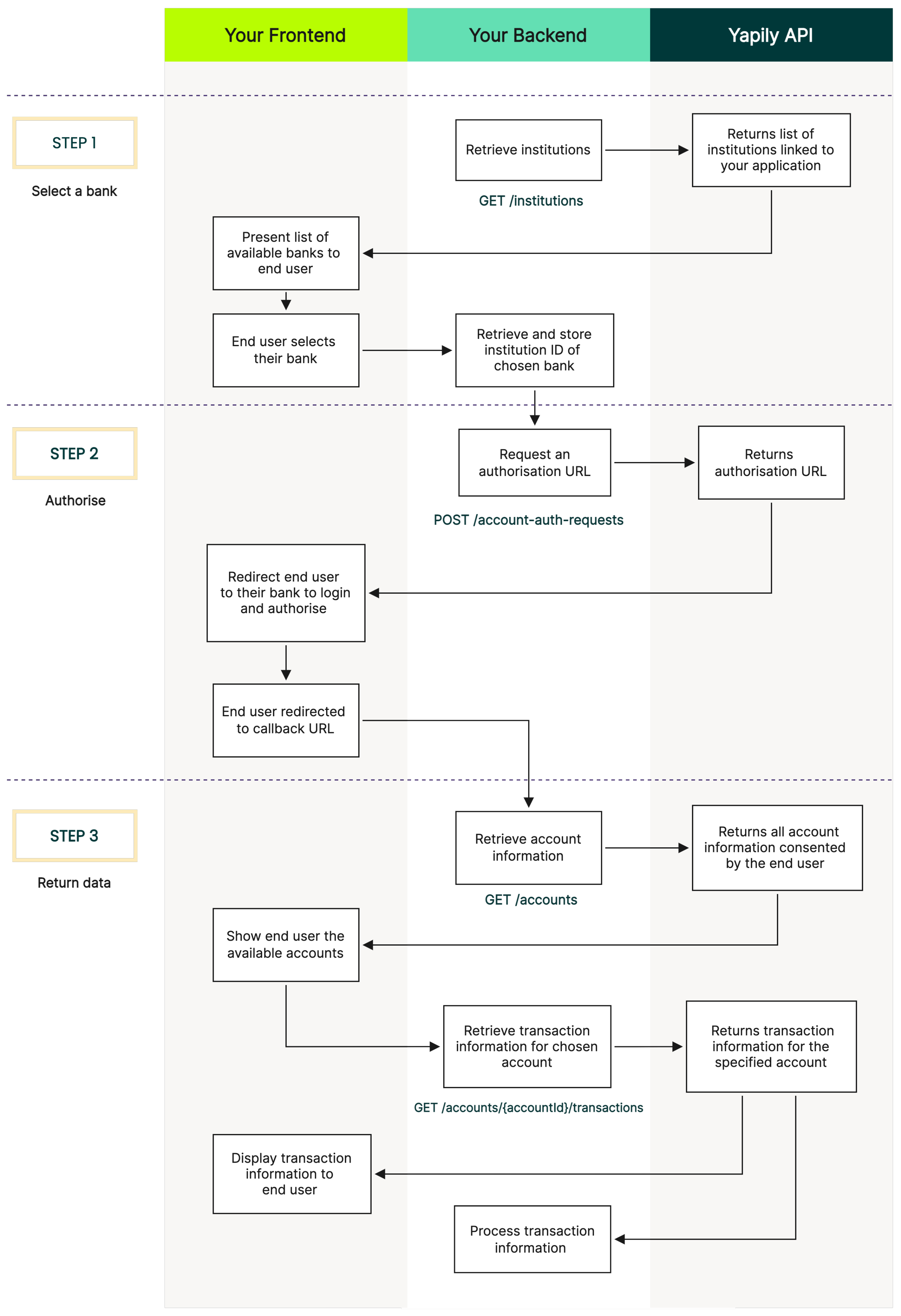
The following diagram illustrates how to access account and transaction information in the UK:
 ***
To find which banks support accessing account and transaction information use [GET institutions](/api-reference/institutions/get-institutions) to retrieve the list of your supported institutions.
```bash Request theme={null}
curl -L -X GET 'https://api.yapily.com/institutions' \
-u 'APPLICATION_KEY:APPLICATION_SECRET'
```
```json Response theme={null}
{
"meta": {
"tracingId": "acbb76db4ab8f4ac7f039d000456c13f",
"count": 1
},
"data": [
{
"id": "modelo-sandbox",
"name": "Modelo Sandbox",
"fullName": "Modelo Sandbox",
"countries": [
{
"displayName": "United Kingdom",
"countryCode2": "GB"
}
],
"environmentType": "SANDBOX",
"credentialsType": "OPEN_BANKING_UK_AUTO",
"media": [
{
"source": "https://images.yapily.com/image/ce2bfdbf-1ae2-4919-ab7b-e8b3d5e93b36?size=0",
"type": "icon"
},
{
"source": "https://images.yapily.com/image/ca502f24-d6df-4785-b4b8-1034b100af77?size=0",
"type": "logo"
}
],
"features": [
"INITIATE_ACCOUNT_REQUEST",
"ACCOUNT_REQUEST_DETAILS",
"EXISTING_PAYMENTS_DETAILS",
"ACCOUNT_BALANCES",
"CREATE_BULK_PAYMENT",
"ACCOUNT_PERIODIC_PAYMENTS",
"ACCOUNT_STATEMENTS",
"INITIATE_BULK_PAYMENT",
"ACCOUNT_STATEMENT",
"ACCOUNT",
"INITIATE_DOMESTIC_PERIODIC_PAYMENT",
"INITIATE_SINGLE_PAYMENT_SORTCODE",
"ACCOUNT_DIRECT_DEBITS",
"ACCOUNTS",
"ACCOUNT_TRANSACTIONS",
"EXISTING_PAYMENT_INITIATION_DETAILS",
"CREATE_DOMESTIC_SINGLE_PAYMENT",
"INITIATE_DOMESTIC_SINGLE_PAYMENT",
"ACCOUNT_STATEMENT_FILE",
"CREATE_INTERNATIONAL_SINGLE_PAYMENT",
"IDENTITY",
"CREATE_DOMESTIC_SCHEDULED_PAYMENT",
"INITIATE_DOMESTIC_SCHEDULED_PAYMENT",
"CREATE_SINGLE_PAYMENT_SORTCODE",
"ACCOUNT_TRANSACTIONS_WITH_MERCHANT",
"INITIATE_INTERNATIONAL_SINGLE_PAYMENT",
"PERIODIC_PAYMENT_FREQUENCY_EXTENDED",
"ACCOUNT_SCHEDULED_PAYMENTS",
"CREATE_DOMESTIC_PERIODIC_PAYMENT"
]
}
]
}
```
Filter the list for all institutions that support the `ACCOUNTS` and `ACCOUNT_TRANSACTIONS` features. Then display these institutions in your application so the user can select which bank to share their account information from.
Once the user selects a bank, store the `id` of the institution to use in step 2.
This example uses a single redirect flow using a [callback URL](/open-banking-flow/user-authorisation/single-redirect#callback-url).
Execute [create account authorisation](/api-reference/authorisations/create-account-authorisation), including the institution ID and your callback URL.
```bash Request theme={null}
curl -L -X POST 'https://api.yapily.com/account-auth-requests' \
-H 'Content-Type: application/json' \
-u 'APPLICATION_KEY:APPLICATION_SECRET' \
-d '{
"applicationUserId": "account-data-and-transactions-tutorial",
"institutionId": "modelo-sandbox",
"callback": "https://display-parameters.com/"
}'
```
```json Response theme={null}
{
"meta": {
"tracingId": "ceab45e96f852afdb59ec8eaf8f93594"
},
"data": {
"id": "979f8a58-c955-46b5-b25d-bdc447c28a80",
"userUuid": "c78035e1-3140-44f7-9539-527785069356",
"applicationUserId": "account-data-and-transactions-tutorial",
"institutionId": "modelo-sandbox",
"status": "AWAITING_AUTHORIZATION",
"createdAt": "2021-03-04T11:05:17.234Z",
"featureScope": [
"ACCOUNT_STATEMENT_FILE",
"ACCOUNT_STATEMENTS",
"ACCOUNT_BALANCES",
"ACCOUNT_SCHEDULED_PAYMENTS",
"ACCOUNT_STATEMENT",
"ACCOUNT_TRANSACTIONS_WITH_MERCHANT",
"ACCOUNT_TRANSACTIONS",
"ACCOUNT_DIRECT_DEBITS",
"IDENTITY",
"ACCOUNT",
"ACCOUNTS",
"ACCOUNT_PERIODIC_PAYMENTS"
],
"state": "e539228113de43b3a3d4c3b9944620d3",
"institutionConsentId": "aac-74e55df8-a673-48b4-b8ae-3e8d0e45080f",
"authorisationUrl": "{authorisationUrl}",
"qrCodeUrl": "https://images.yapily.com/image/d4113d96-9d6c-4e69-a840-2e327cff1b1d/1614855917?size=0"
}
}
```
Redirect the user to the `authorisationUrl` returned in the response.
The user is then asked to login and authorise the account sharing request with their bank. The [Modelo sandbox credentials](/resources/sandbox/sandbox-credentials#modelo-sandbox) are: `mits` / `mits`.
Upon completion, the user is redirected back to the callback URL supplied in the request. In this example, the callback is `https://display-parameters.com/` which displays the parameters returned with the redirect.
Store the `consentToken` to use when accessing account information in step 3. The `featureScope` array defines the account features you'll be able to access for each account the user authorises.
**Note:** Access to the user's account information is for a maximum of [90 days](/data/financial-data-resources/uk-data-consent-changes) by default before requiring re-authorisation from the user.
[Retrieve account information](/api-reference/financial-data/get-accounts), specifying the `consentToken` in the header.
```bash Request theme={null}
curl -L -X GET 'https://api.yapily.com/accounts' \
-H 'Consent: {consentToken}' \
-u 'APPLICATION_KEY:APPLICATION_SECRET'
```
```json Response theme={null}
{
"meta": {
"tracingId": "14df65068fd38689b392ad39602143cb",
"count": 1
},
"data": [
{
"id": "700004000000000000000007",
"type": "Personal - Current",
"balance": -99765867307.74,
"currency": "GBP",
"usageType": "PERSONAL",
"accountType": "CURRENT",
"nickname": "xxxx0009",
"accountNames": [
{
"name": "Mr. Mitsuhirato"
}
],
"accountIdentifications": [
{
"type": "PAN",
"identification": "1234000000000001"
}
],
"accountBalances": [
{
"type": "EXPECTED",
"dateTime": "2021-03-04T11:08:39.291Z",
"balanceAmount": {
"amount": -99765867307.74,
"currency": "GBP"
},
"creditLineIncluded": false,
"creditLines": []
}
]
}
]
}
```
The response returns an array of [account objects](/api-reference/financial-data/get-account#response-data) for each account the user has provided consent to share information from. The response from every institution is normalised so you can handle the data consistently.
Display the available accounts to the end user so they can select which account to get transaction data for. Once selected, store the account `id`.
[Get account transactions](/api-reference/financial-data/get-account-transactions#response-data) for a specified account by including the account `id` in the path and the `consentToken` in the header.
```bash Request theme={null}
curl -L -X GET 'https://api.yapily.com/accounts/{accountId}/transactions' \
-H 'Consent: {consentToken}' \
-u 'APPLICATION_KEY:APPLICATION_SECRET'
```
```json Response theme={null}
{
"meta": {
"tracingId": "0d9835a9c83204f8c0607ddfef961bab",
"count": 760,
"pagination": {
"totalCount": 760,
"self": {
"limit": 1000,
"sort": "-date",
"offset": 0
}
}
},
"data": [
{
"id": "15f5b8b3-d8ca-422a-af4e-2538546788e8",
"date": "2021-02-26T11:07:41.79Z",
"bookingDateTime": "2021-02-26T11:07:41.79Z",
"valueDateTime": "2021-02-26T11:07:41.79Z",
"status": "BOOKED",
"amount": -0.99,
"currency": "GBP",
"transactionAmount": {
"amount": -0.99,
"currency": "GBP"
},
"reference": "7",
"description": "Debit for Payment Id: sdp-1-58718033-969e-4941-832b-3ad7b76c3e71",
"transactionInformation": [
"Debit for Payment Id: sdp-1-58718033-969e-4941-832b-3ad7b76c3e71"
],
"isoBankTransactionCode": {
"domainCode": {
"code": "PMNT",
"name": "Payments"
},
"familyCode": {
"code": "ICDT",
"name": "Issued Credit Transfers"
},
"subFamilyCode": {
"code": "DMCT",
"name": "Domestic Credit Transfer"
}
},
"proprietaryBankTransactionCode": {
"code": "PMT",
"issuer": "modelo-sandbox"
},
"balance": {
"type": "CLOSING_AVAILABLE",
"balanceAmount": {
"amount": 99765867307.74,
"currency": "GBP"
}
},
"enrichment": {
"transactionHash": {
"hash": "54be0baf91aaa732cd8b6bacc6396042.1"
}
}
}
],
"links": {
"self": "https://api.yapily.com/accounts/700004000000000000000007/transactions?from&before&limit=1000&sort=-date&offset=0&cursor"
}
}
```
The response returns an array of [transaction objects](/api-reference/financial-data/get-account-transactions#response-data) for the specified account.
You can then display the transaction information to the end user or process the data internally depending on your use case.
**Note:** By default, Yapily limits the results to the most recent 1000 transactions. See [pagination](/data/financial-data-resources/pagination) for more information on how to manage transaction responses that contain more than 1000 transactions.
***
To find which banks support accessing account and transaction information use [GET institutions](/api-reference/institutions/get-institutions) to retrieve the list of your supported institutions.
```bash Request theme={null}
curl -L -X GET 'https://api.yapily.com/institutions' \
-u 'APPLICATION_KEY:APPLICATION_SECRET'
```
```json Response theme={null}
{
"meta": {
"tracingId": "acbb76db4ab8f4ac7f039d000456c13f",
"count": 1
},
"data": [
{
"id": "modelo-sandbox",
"name": "Modelo Sandbox",
"fullName": "Modelo Sandbox",
"countries": [
{
"displayName": "United Kingdom",
"countryCode2": "GB"
}
],
"environmentType": "SANDBOX",
"credentialsType": "OPEN_BANKING_UK_AUTO",
"media": [
{
"source": "https://images.yapily.com/image/ce2bfdbf-1ae2-4919-ab7b-e8b3d5e93b36?size=0",
"type": "icon"
},
{
"source": "https://images.yapily.com/image/ca502f24-d6df-4785-b4b8-1034b100af77?size=0",
"type": "logo"
}
],
"features": [
"INITIATE_ACCOUNT_REQUEST",
"ACCOUNT_REQUEST_DETAILS",
"EXISTING_PAYMENTS_DETAILS",
"ACCOUNT_BALANCES",
"CREATE_BULK_PAYMENT",
"ACCOUNT_PERIODIC_PAYMENTS",
"ACCOUNT_STATEMENTS",
"INITIATE_BULK_PAYMENT",
"ACCOUNT_STATEMENT",
"ACCOUNT",
"INITIATE_DOMESTIC_PERIODIC_PAYMENT",
"INITIATE_SINGLE_PAYMENT_SORTCODE",
"ACCOUNT_DIRECT_DEBITS",
"ACCOUNTS",
"ACCOUNT_TRANSACTIONS",
"EXISTING_PAYMENT_INITIATION_DETAILS",
"CREATE_DOMESTIC_SINGLE_PAYMENT",
"INITIATE_DOMESTIC_SINGLE_PAYMENT",
"ACCOUNT_STATEMENT_FILE",
"CREATE_INTERNATIONAL_SINGLE_PAYMENT",
"IDENTITY",
"CREATE_DOMESTIC_SCHEDULED_PAYMENT",
"INITIATE_DOMESTIC_SCHEDULED_PAYMENT",
"CREATE_SINGLE_PAYMENT_SORTCODE",
"ACCOUNT_TRANSACTIONS_WITH_MERCHANT",
"INITIATE_INTERNATIONAL_SINGLE_PAYMENT",
"PERIODIC_PAYMENT_FREQUENCY_EXTENDED",
"ACCOUNT_SCHEDULED_PAYMENTS",
"CREATE_DOMESTIC_PERIODIC_PAYMENT"
]
}
]
}
```
Filter the list for all institutions that support the `ACCOUNTS` and `ACCOUNT_TRANSACTIONS` features. Then display these institutions in your application so the user can select which bank to share their account information from.
Once the user selects a bank, store the `id` of the institution to use in step 2.
This example uses a single redirect flow using a [callback URL](/open-banking-flow/user-authorisation/single-redirect#callback-url).
Execute [create account authorisation](/api-reference/authorisations/create-account-authorisation), including the institution ID and your callback URL.
```bash Request theme={null}
curl -L -X POST 'https://api.yapily.com/account-auth-requests' \
-H 'Content-Type: application/json' \
-u 'APPLICATION_KEY:APPLICATION_SECRET' \
-d '{
"applicationUserId": "account-data-and-transactions-tutorial",
"institutionId": "modelo-sandbox",
"callback": "https://display-parameters.com/"
}'
```
```json Response theme={null}
{
"meta": {
"tracingId": "ceab45e96f852afdb59ec8eaf8f93594"
},
"data": {
"id": "979f8a58-c955-46b5-b25d-bdc447c28a80",
"userUuid": "c78035e1-3140-44f7-9539-527785069356",
"applicationUserId": "account-data-and-transactions-tutorial",
"institutionId": "modelo-sandbox",
"status": "AWAITING_AUTHORIZATION",
"createdAt": "2021-03-04T11:05:17.234Z",
"featureScope": [
"ACCOUNT_STATEMENT_FILE",
"ACCOUNT_STATEMENTS",
"ACCOUNT_BALANCES",
"ACCOUNT_SCHEDULED_PAYMENTS",
"ACCOUNT_STATEMENT",
"ACCOUNT_TRANSACTIONS_WITH_MERCHANT",
"ACCOUNT_TRANSACTIONS",
"ACCOUNT_DIRECT_DEBITS",
"IDENTITY",
"ACCOUNT",
"ACCOUNTS",
"ACCOUNT_PERIODIC_PAYMENTS"
],
"state": "e539228113de43b3a3d4c3b9944620d3",
"institutionConsentId": "aac-74e55df8-a673-48b4-b8ae-3e8d0e45080f",
"authorisationUrl": "{authorisationUrl}",
"qrCodeUrl": "https://images.yapily.com/image/d4113d96-9d6c-4e69-a840-2e327cff1b1d/1614855917?size=0"
}
}
```
Redirect the user to the `authorisationUrl` returned in the response.
The user is then asked to login and authorise the account sharing request with their bank. The [Modelo sandbox credentials](/resources/sandbox/sandbox-credentials#modelo-sandbox) are: `mits` / `mits`.
Upon completion, the user is redirected back to the callback URL supplied in the request. In this example, the callback is `https://display-parameters.com/` which displays the parameters returned with the redirect.
Store the `consentToken` to use when accessing account information in step 3. The `featureScope` array defines the account features you'll be able to access for each account the user authorises.
**Note:** Access to the user's account information is for a maximum of [90 days](/data/financial-data-resources/uk-data-consent-changes) by default before requiring re-authorisation from the user.
[Retrieve account information](/api-reference/financial-data/get-accounts), specifying the `consentToken` in the header.
```bash Request theme={null}
curl -L -X GET 'https://api.yapily.com/accounts' \
-H 'Consent: {consentToken}' \
-u 'APPLICATION_KEY:APPLICATION_SECRET'
```
```json Response theme={null}
{
"meta": {
"tracingId": "14df65068fd38689b392ad39602143cb",
"count": 1
},
"data": [
{
"id": "700004000000000000000007",
"type": "Personal - Current",
"balance": -99765867307.74,
"currency": "GBP",
"usageType": "PERSONAL",
"accountType": "CURRENT",
"nickname": "xxxx0009",
"accountNames": [
{
"name": "Mr. Mitsuhirato"
}
],
"accountIdentifications": [
{
"type": "PAN",
"identification": "1234000000000001"
}
],
"accountBalances": [
{
"type": "EXPECTED",
"dateTime": "2021-03-04T11:08:39.291Z",
"balanceAmount": {
"amount": -99765867307.74,
"currency": "GBP"
},
"creditLineIncluded": false,
"creditLines": []
}
]
}
]
}
```
The response returns an array of [account objects](/api-reference/financial-data/get-account#response-data) for each account the user has provided consent to share information from. The response from every institution is normalised so you can handle the data consistently.
Display the available accounts to the end user so they can select which account to get transaction data for. Once selected, store the account `id`.
[Get account transactions](/api-reference/financial-data/get-account-transactions#response-data) for a specified account by including the account `id` in the path and the `consentToken` in the header.
```bash Request theme={null}
curl -L -X GET 'https://api.yapily.com/accounts/{accountId}/transactions' \
-H 'Consent: {consentToken}' \
-u 'APPLICATION_KEY:APPLICATION_SECRET'
```
```json Response theme={null}
{
"meta": {
"tracingId": "0d9835a9c83204f8c0607ddfef961bab",
"count": 760,
"pagination": {
"totalCount": 760,
"self": {
"limit": 1000,
"sort": "-date",
"offset": 0
}
}
},
"data": [
{
"id": "15f5b8b3-d8ca-422a-af4e-2538546788e8",
"date": "2021-02-26T11:07:41.79Z",
"bookingDateTime": "2021-02-26T11:07:41.79Z",
"valueDateTime": "2021-02-26T11:07:41.79Z",
"status": "BOOKED",
"amount": -0.99,
"currency": "GBP",
"transactionAmount": {
"amount": -0.99,
"currency": "GBP"
},
"reference": "7",
"description": "Debit for Payment Id: sdp-1-58718033-969e-4941-832b-3ad7b76c3e71",
"transactionInformation": [
"Debit for Payment Id: sdp-1-58718033-969e-4941-832b-3ad7b76c3e71"
],
"isoBankTransactionCode": {
"domainCode": {
"code": "PMNT",
"name": "Payments"
},
"familyCode": {
"code": "ICDT",
"name": "Issued Credit Transfers"
},
"subFamilyCode": {
"code": "DMCT",
"name": "Domestic Credit Transfer"
}
},
"proprietaryBankTransactionCode": {
"code": "PMT",
"issuer": "modelo-sandbox"
},
"balance": {
"type": "CLOSING_AVAILABLE",
"balanceAmount": {
"amount": 99765867307.74,
"currency": "GBP"
}
},
"enrichment": {
"transactionHash": {
"hash": "54be0baf91aaa732cd8b6bacc6396042.1"
}
}
}
],
"links": {
"self": "https://api.yapily.com/accounts/700004000000000000000007/transactions?from&before&limit=1000&sort=-date&offset=0&cursor"
}
}
```
The response returns an array of [transaction objects](/api-reference/financial-data/get-account-transactions#response-data) for the specified account.
You can then display the transaction information to the end user or process the data internally depending on your use case.
**Note:** By default, Yapily limits the results to the most recent 1000 transactions. See [pagination](/data/financial-data-resources/pagination) for more information on how to manage transaction responses that contain more than 1000 transactions.